Treon Connect Mobile UI Navigation

Introduction
This article explains the Treon Connect Mobile app user interface.
First log-in
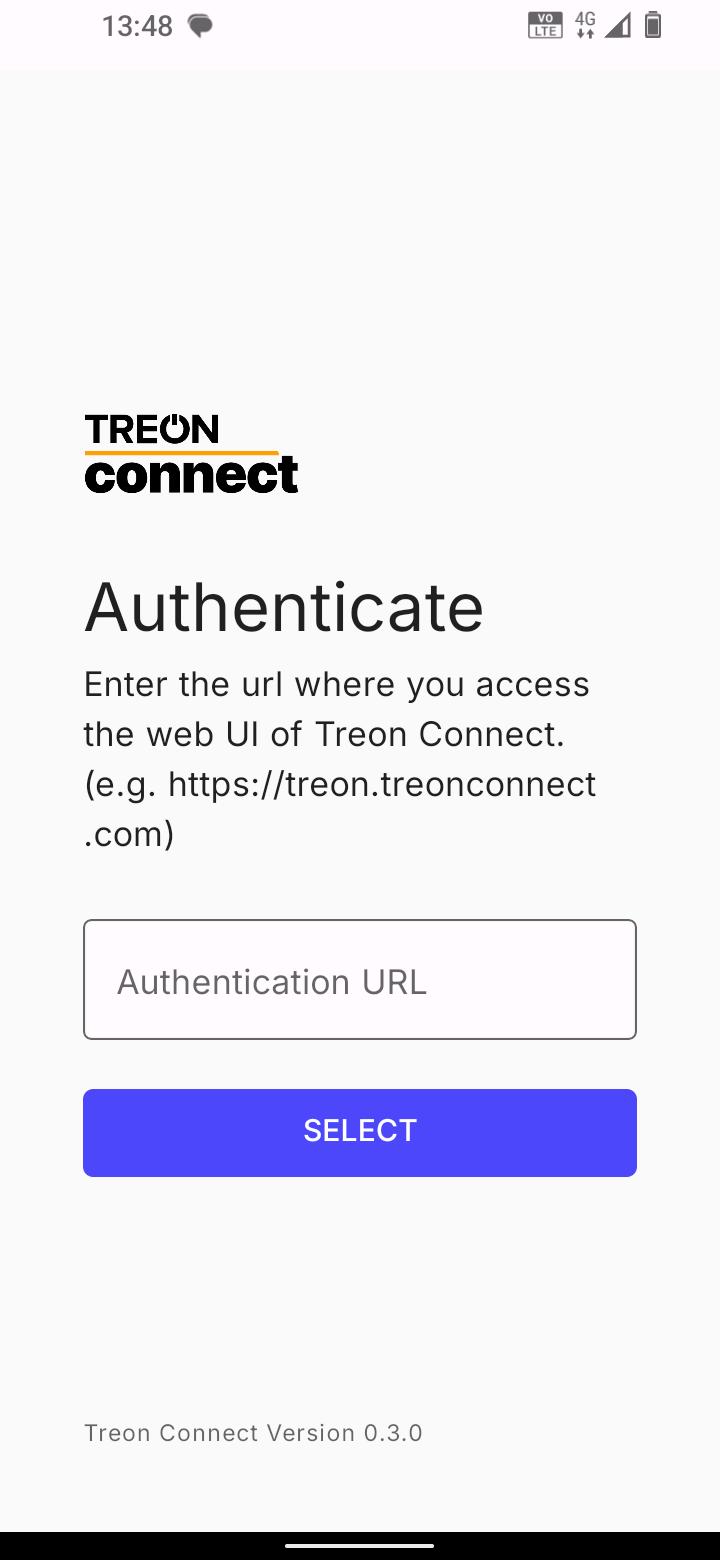
After starting the Treon Connect Mobile app for the first time, you are asked to enter the name of your Treon Connect instance. Enter the link you have received and press SELECT.
After you have selected your Treon Connect instance, you are asked to enter your email address and your password. Enter both and press LOGIN to log in.
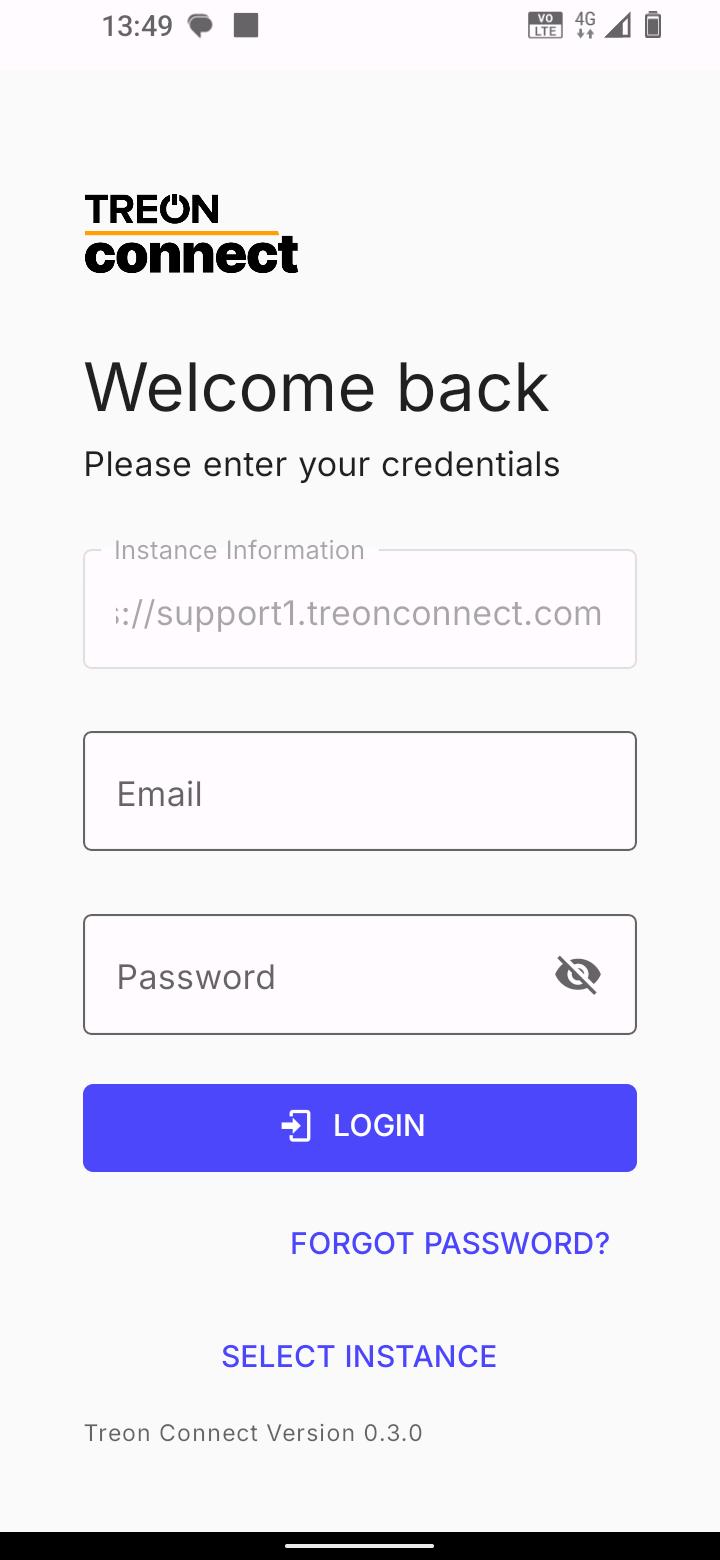
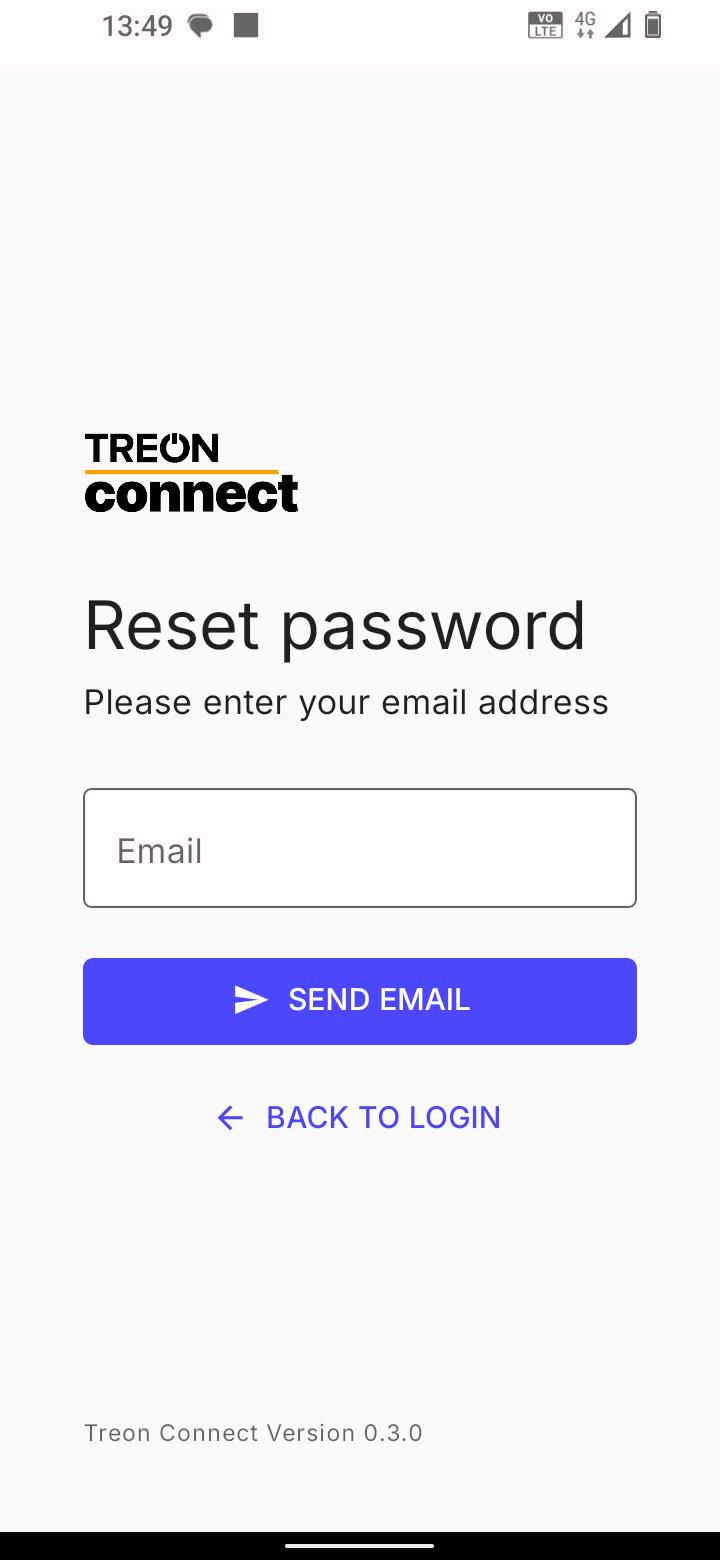
In case you forgot your Treon Connect instance password, you can reset it by selecting FORGOT PASSWORD? and entering your user email address in the next window. Press SEND EMAIL to receive an email with a reset link and information on how to reset your password.
Treon Connect Mobile UI
After starting the Treon Connect app, you will see the Dashboard menu of your Treon Connect instance.
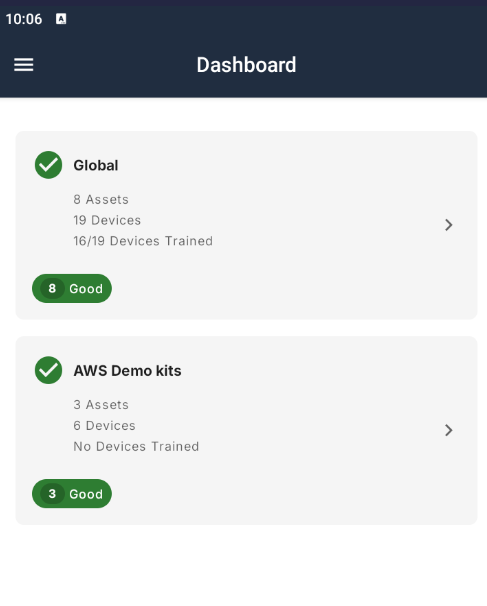
By clicking the menu on the top left side, you will see the full navigation menu.
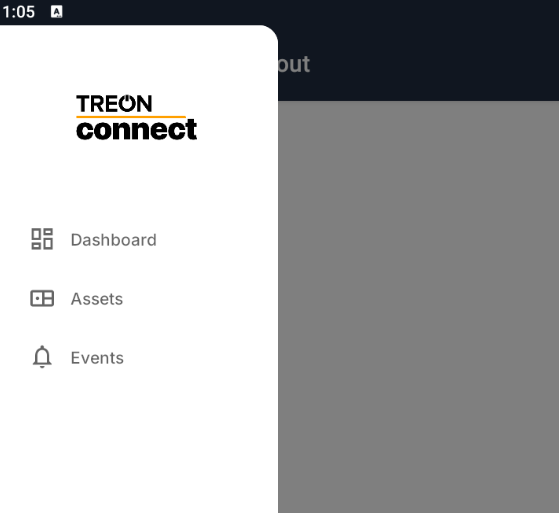
From the menu, you can access the Events menu where all alerts and warnings from the Assets assigned to you are displayed for the responsible maintenance technicians.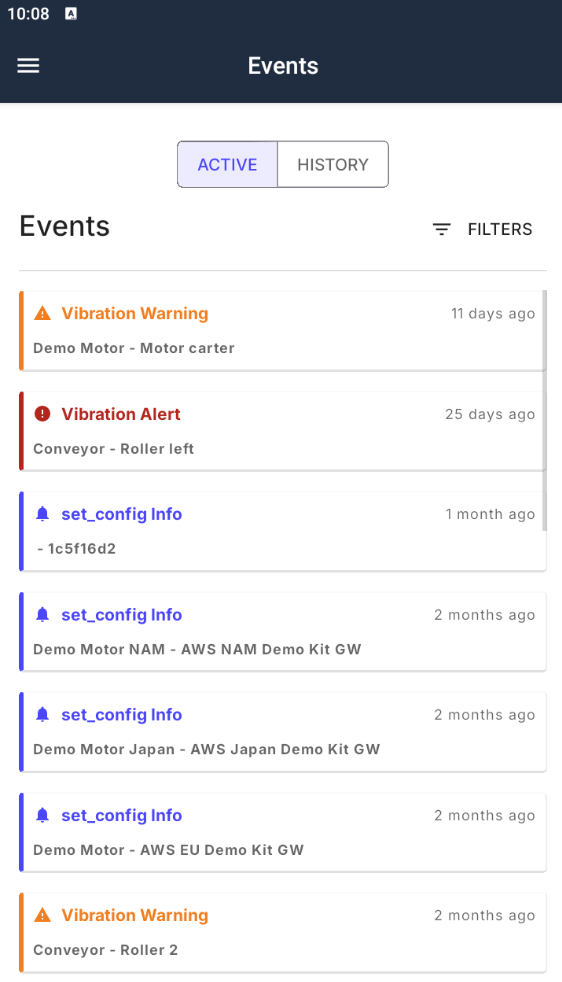
From the menu, you can also access the full list of Assets. Here you can assign new sensors to existing Assets when commissioning sensors.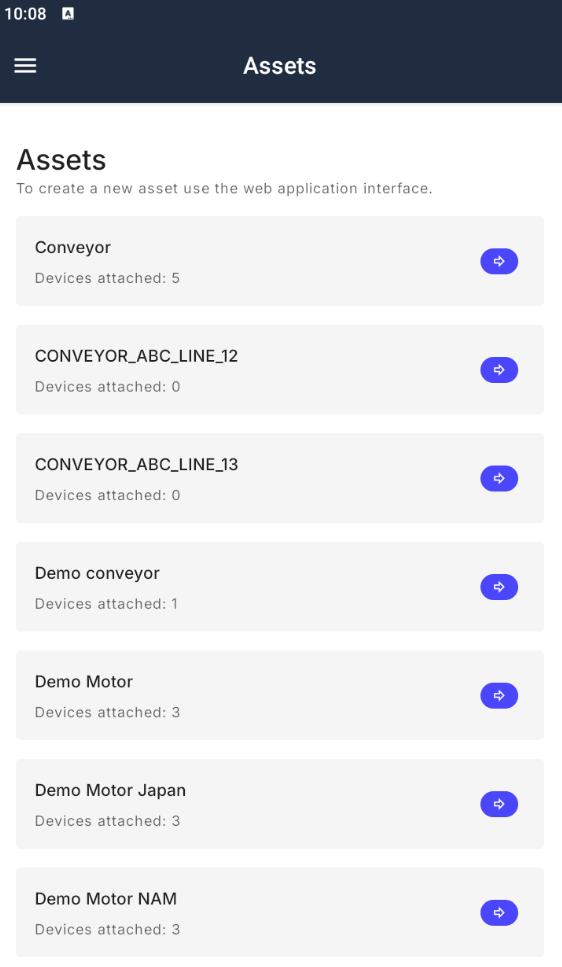

Last updated on Dec 9, 2025