Working with Events in the Treon Connect Mobile app
Introduction
Events include alerts and warnings that indicate that specific pre-set measurement levels have been detected.
The Treon Connect app shows the Events for the Assets a user has access to.
Working with Events
In your Events list, you will see:
- Warning: A warning is an event with a lower threshold and potentially lower urgency.
- Alert: An alert is an event with a higher threshold and higher urgency.
- Info: Information events can be
a. triggered manually as information from the Treon Connect web platform or
b. are shown when a sensor measurement has been triggered manually.
Warnings and alerts are events triggered by pre-defined measurement thresholds based on:
- Manually set parameters: Specific thresholds can be set for any of the measured KPIs to trigger warnings and alerts in case the measurement data fulfills the pre-et conditions.
- Classifications: Applying ISO- and preset classifications can be used to set the same thresholds for a large number of sensors and to fulfill specific monitoring and maintenance requirements.
- AI-based learning algorithms: Treon’s AI algorithm studies the measurement data for about two weeks in order to find baselines. Based on these baselines, alerts and warnings are sent out.
All categories of thresholds can be mixed and set at the same time. E.g. There can be manually set alert thresholds at the same time as thresholds defined by the AI-based learning algorithm. When you receive an alert or warning, you will see the type of event together with data on which threshold was breached by a measurement.
Whenever a measurement exceeds the threshold, an event is triggered. This event will be a warning or an alert depending on the severity of the threshold exceedance.
After the event has been triggered, it will show in the app of all people who have access to the Asset the measurement is made from.
You can now investigate the alert or warning further, check the measurement data and its progression over time. Of course, you can also directly check the Asset on location. You can add comments to the Event, both in Treon Connect Mobile and Treon Connect Web. This way you log all findings for yourself and other staff.
After your investigation and conducting all relevant maintenance of the Asset, you would enter the maintenance data in Treon Connect and finally clear the Event.
Investigating Events
Step 1: Open Events in Treon Connect Mobile
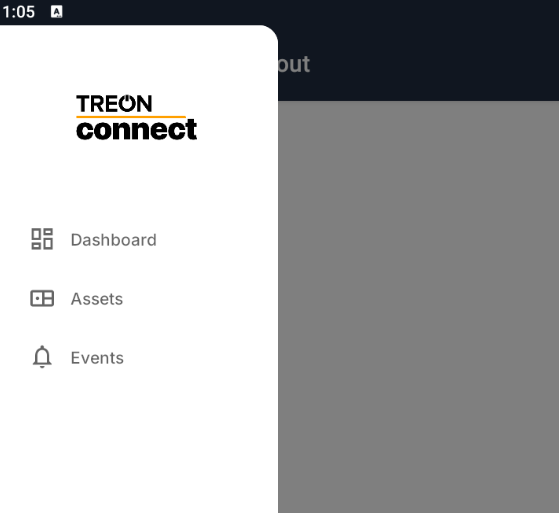
Open the Treon Connect Mobile app on your phone. In the navigation plane on the left side, click the Events menu.
Step 2: View Events list
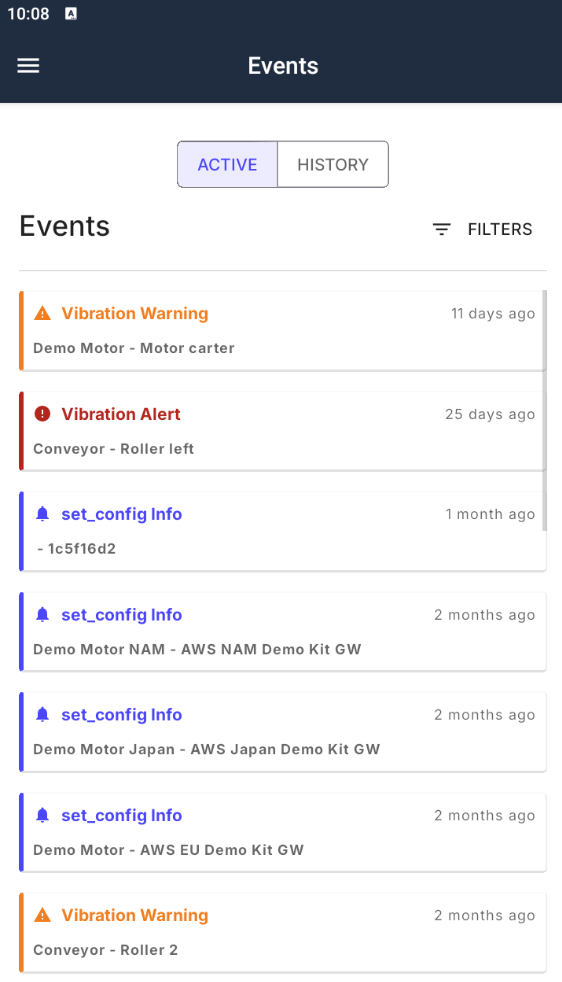
A new menu opens. You can now see the full list of Events triggered by the sensor measurements at your Assets.
You can also choose to see the history of your cleared events by clicking History at the top.
Step 3: Viewing Event details
By clicking on the individual event in the Events list you open a new window with a summary of the event.
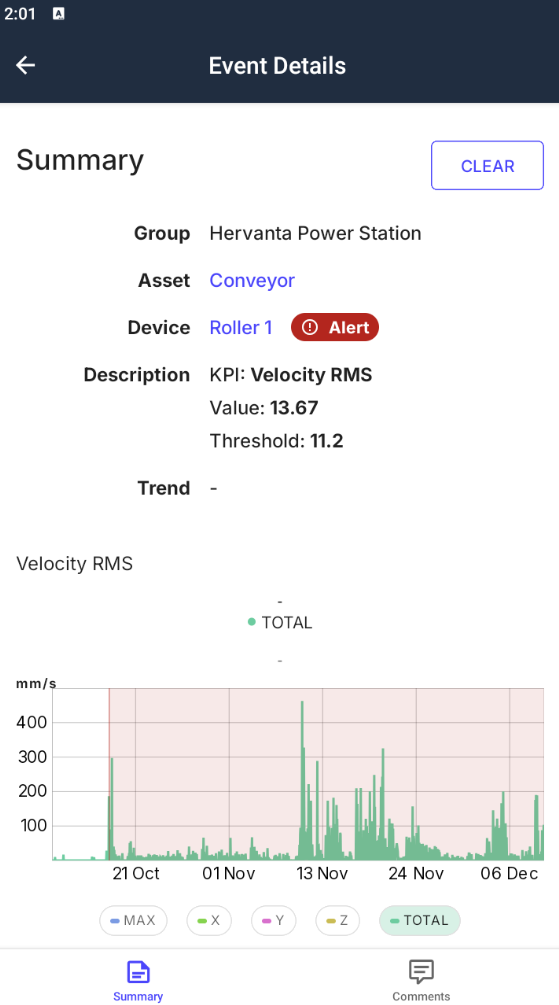
Group Name: Name of the Group the Asset belongs to.
Asset Name: Name of the Asset the sensor device is mounted on.
Device Name: Name of the sensor device.
Description: The description details which measurement KPI is concerned (Velocity RMS, Temperature, etc.), which value was measured, and at which value the event threshold is set.
Additionally, you will see the measurement data of the KPI over the last weeks. This helps seeing the development of the KPI over time. You can use this data to investigate if a potential trend over time correlates to a degradation of the Asset’s condition, and how soon maintenance is needed.
Event resolution
After an event has been triggered, you should follow your work instructions on how to follow up on the sensor measurement threshold exceedance on the equipment concerned.
Potential resulotions of events in your workflow might be:
- Inspection of the equipment
- Scheduling maintenance
- Replacment of equipment or equipment parts.
- etc.
Please consult your company’s work instructions and the equipment’s maintenance manual for further information.
Comments
You can add your findings to the Event in Treon Connect.
In the EventDetails*, click the *Comments* button in the bottom right corner.

This will open the Comments menu.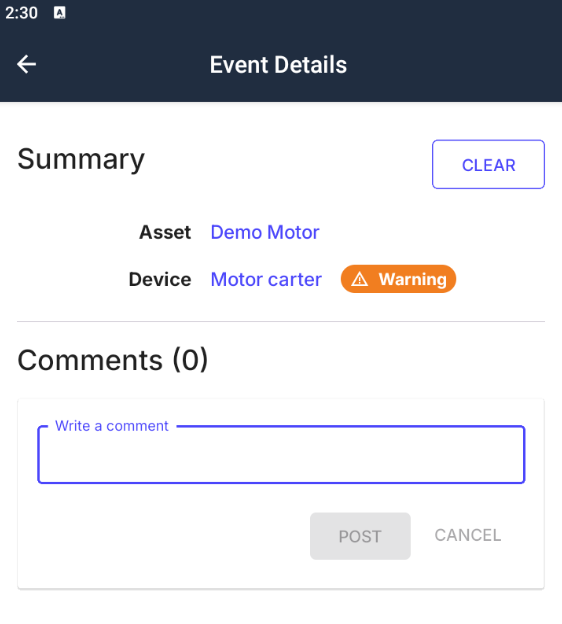
In the Comments menu you can log your findings on measurement data and maintenance progress.
The comments can be seen by yourself and all other Treon Connect users who have access to this Asset. This way you can collaborate with colleagues and external personnel on resolving the issue.
You and other users will be able to see these comments in case a new Event is triggered for the same Asset.
Clearing Events
After you have successfully followed your work instructions, you can clear an Event. After clearing, it will no longer show as active in the Events list, but as cleared.
The event will be shown ad cleared for all users and administrators with access to the Asset.
Step 1: Event info
In the Event Info, click *Clear on the top right side in order to clear an event.
Step 2: Data entry
A new menu will open. Here you enter information about the event and confirm that it should be cleared.
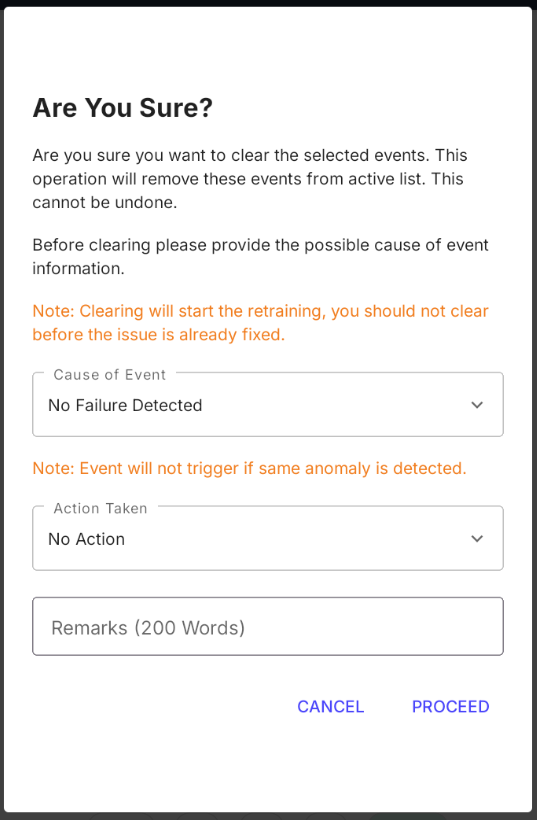
Cause of Event: Choose a root cause for the threshold exceedance from the drop-down list.
Action Taken: Choose the action you have taken to deal with the Event from the drop-down list.
Remarks: Enter any remarks concerning the root cause of the Event, the actions taken by you, or any relevant information in the text field.
Step 3: Confirmation
After all data about the event has been filled in, you can confirm clearing the Event by clicking Proceed.
The Event has now been cleared successfully.
The Event will be visible in the History section of the Asset’s events for you and other users assigned to the Asset.

Last updated on Dec 10, 2025