Treon Industrial Node X activating
After installation, the Treon Industrial Node X needs to be turned on.
Please note that we recommend first testing the Treon Gateway and all Treon Industrial Node X sensors before actual deployment. This way you make sure that all nodes connect to the gateway, and the gateway delivers data to your Treon Connect instance.
This means that after deploying the Treon Industrial Node X sensors, they might already be turned on.
Checking the node status
To check if the Treon Industrial Node X is turned on, follow these steps:
Press the power button briefly.
If the status light turns green, the sensor is connected.
CONNECTED If the status light turns red, the sensor is not yet connected.
NOT CONNECTED
In case the sensor is not connected, the Gateway has been powered on, both sensor and Gateway are configured to same network and the sensor has had time to establish the connection, the sensor may be too far from the gateway or surroundings are blocking the radio connection. In either case, the gateway needs to be moved closer to the sensor or an additional routing sensor can be added between the sensor and the gateway to help routing the data.
Please note that to press the button or view the led, the top cap of the sensor needs to be removed. You can also check if the sensor is connected to a Gateway by
Activating the node
The Treon Industrial Node X can be powered on by two ways:
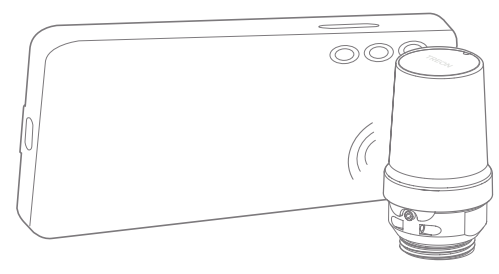
a. Bring an NFC field (such as in a smartphone) to the proximity of the sensor.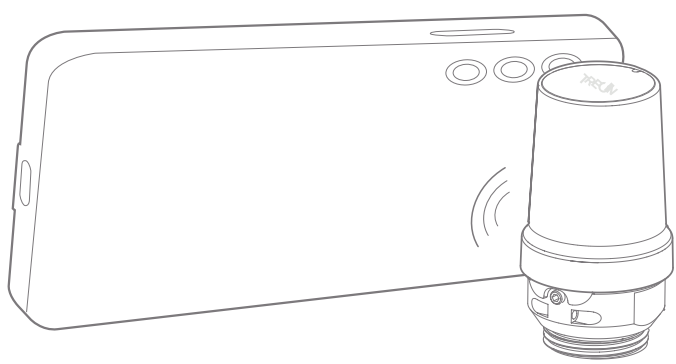
b. Press and hold the power button until the status light turns green.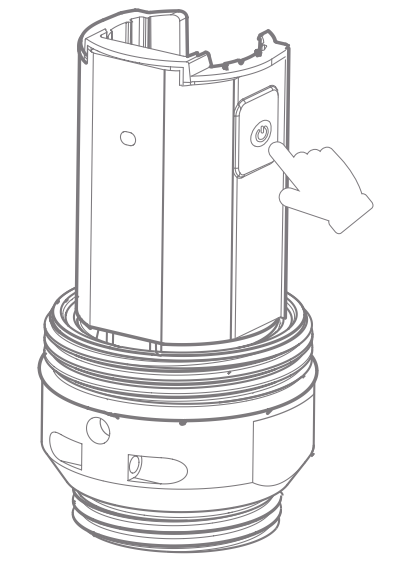
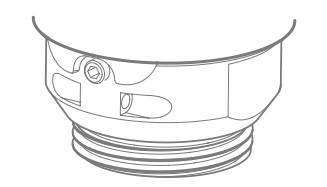
Deactivating the node
To switch off the Treon Industrial Node X, press the power button until the status light turns red, then let go of the button.
The sensor serial number and a QR code including serial number are printed on the base of the sensor.
You can also use an NFC reader, such as NFC-enabled mobile phone to read the identification number: switch on NFC on the reader and touch the left side of the of the sensor with the reader.

Last updated on Mar 24, 2026