Creating and managing assets
Monitoring starts when a machine exists as an asset in Treon Connect. This page explains how to create, edit, move and remove assets and their measurement points.
Create an asset
Click Create New in the asset list. The drawer collects the asset's details:
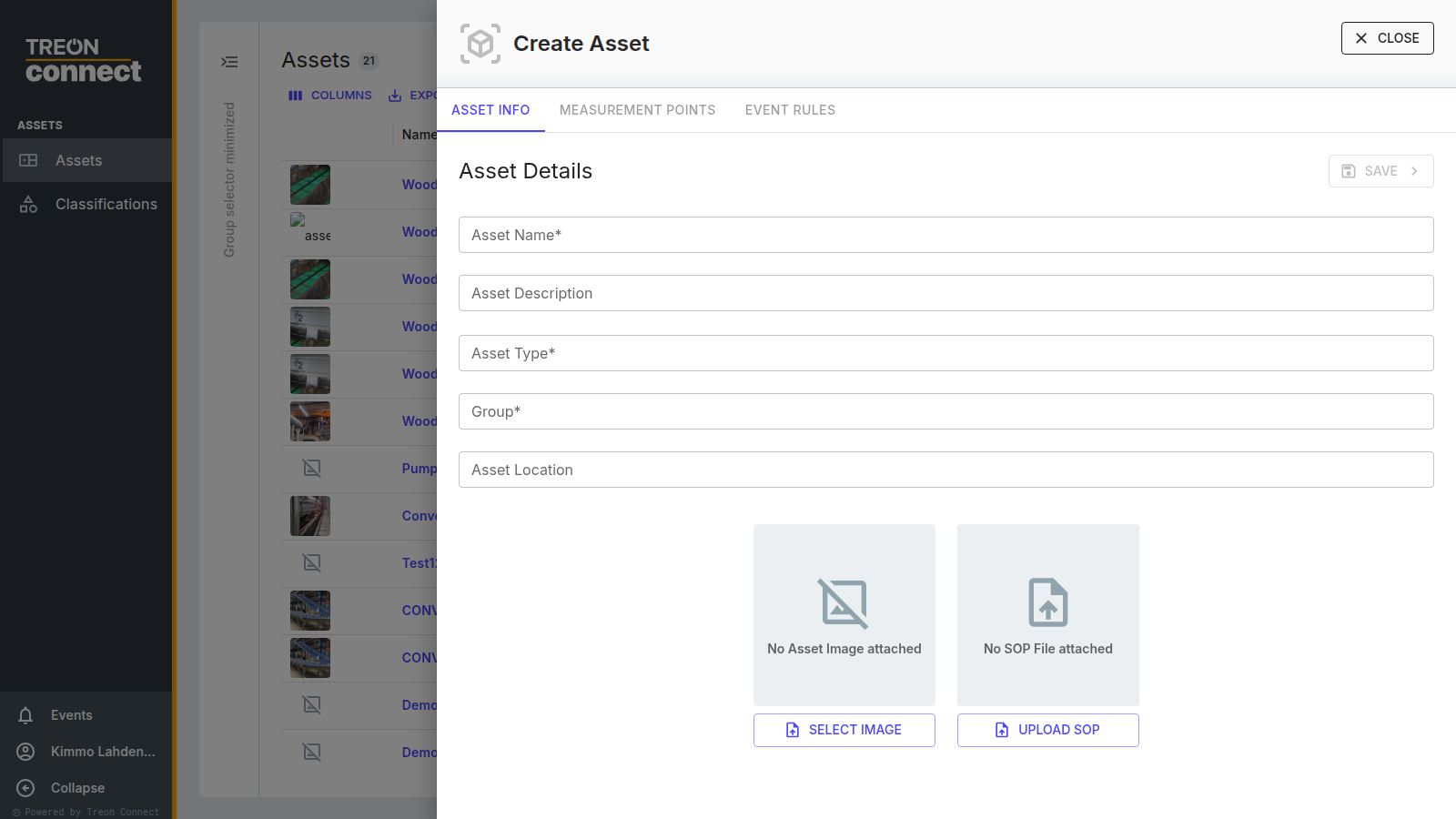
| Field | Notes |
|---|---|
| Asset Name (required) | Must be unique across your whole Treon Connect instance — not just within the group. Use site-qualified names ("Axima Chiller – Roof Plant 1") when the same machine type exists at several sites. |
| Asset Description | Free text. |
| Asset Type (required) | Free text describing the machine class (e.g. CHILLER, Conveyor, Motor + gearbox + bearing). |
| Group (required) | Where in your site hierarchy the asset lives. |
| Asset Location | Free text, shown in the list. |
You can also attach an asset image (shown in lists and dashboards) and upload a SOP file — the standard operating procedure your technicians should follow, as a PDF up to 25 MB.
An asset has four tabs — Asset Info, Measurement Points, Event Rules and Layout Map. Creating an asset drops you on Measurement Points so you can attach devices straight away; you can also do it later. Event Rules sets the alerting per point (see setting event rules), and Layout Map lets you place the measurement points on a diagram of the machine.
Couldn't create asset — Reason: Bad request
The most common cause is a name collision — an asset with the same name already exists, possibly in a group outside your current selection, so you may not see it in the list. Search across all groups for the name, or use a site-qualified name.
Measurement points
A measurement point is one sensor on one part of the machine. Open the asset, go to Measurement Points and click ADD NEW:
| Field | Notes |
|---|---|
| Name (required) | What this point is, in machine terms: "Motor DE bearing", "Pump NDE". |
| Choose Sensor (required) | The device to attach. Only unattached devices are listed. |
| Type (required) | Motor, Gearbox, Bearing, Pump, Fan or Others. |
| Nominal RPM | The machine's rated speed, as a whole number. |
| Motor Pole Pair Count (1-8 or N/A) | Shown only when Type is Motor. See below. |
| Class | The vibration class used for thresholds. See Classifications. |
| Installation Position | Where on the machine the sensor sits. |
You can also attach a measurement point image (JPG or PNG, up to 4 MB).
Reporting RPM for a motor
Treon Connect does not read a rotation speed off the machine. It derives RPM from the magnetic field a Treon Industrial Node X measures, and the conversion from electrical frequency to shaft speed needs the motor's pole pair count. For what the figure means, see RPM – rotation speed explained. Three things have to be in place:
- Set the measurement point's Type to Motor. The pole pair field only appears for motors.
- Set Motor Pole Pair Count. Pick the motor's number of pole pairs, 1 to 8. A two-pole motor is 1 pole pair, a four-pole motor is 2, and so on. The nameplate usually gives the pole count, which is twice the pole pair count.
- Configure the node to measure the magnetic field. RPM comes from the magnetometer, so the device needs a measurement set that includes it: sets 1, 3, 4, 6 or 12. See Node X configuration.
With all three in place, RPM appears as a trend in Condition alongside the other magnetometer values.
Nominal RPM is informative only
Nominal RPM records the machine's rated speed for people reading the asset. It is not used to calculate, scale or validate the measured RPM, and filling it in does not make a node report RPM.
RPM is Treon Industrial Node X only
The Treon Industrial Node C has no magnetometer and does not report RPM. Magnetic field measurement also only works on electric motors, where the stator's field is what the node picks up.
Edit or delete an asset
Open an asset from the list to view and edit its details, replace the image or SOP, manage measurement points, and delete the asset. Deleting an asset does not delete the devices attached to it — they return to the unattached pool.
Unsaved measurement-point changes
Closing the drawer discards unsaved measurement-point edits without a warning. Save before navigating away.