Configuration
Collect enough data to diagnose the fault without wasting battery. A measurement profile sets what Node X measures, when and how often. Start from the default profile and adjust it centrally in Configurations.
The default profile
The default profile is optimised for general use:
- KPIs hourly — velocity RMS, acceleration RMS and the rest.
- FFT every 6 hours — enough detail for human evaluation when something is flagged.
That combination gives frequent measurements for automated KPI alerts while keeping enough spectral data to investigate. Raw waveform capture is off by default.
Read a profile in this order: start with the timers, see which measurements they trigger, then see which calculations those measurements feed.
This is what a Treon Industrial Node X ships with:
| Default trigger | Runs every | What it measures | Key parameters |
|---|---|---|---|
| Timer 0 | 60 minutes | Acceleration KPIs (RMS, Peak, Peak-to-Peak, Crest Factor, Kurtosis) + Temperature | High-pass filter, 1000 Hz cutoff |
| Velocity KPI (RMS) + Temperature | Band-pass filter, 10–1000 Hz | ||
| Timer 1 | 6 hours (offset 15 min) | Acceleration FFT (spectrum) | Fmax 10,416.8 Hz, 6400 lines, 1.63 Hz/line, 4 averages / 50% overlap |
| Velocity FFT (spectrum) | High-pass 2 Hz cutoff; Fmax 1,041.7 Hz, 3200 lines, 0.33 Hz/line, 2 averages / 50% overlap |
Timer 0 runs measurement set 0 and Timer 1 runs measurement set 5. Those are the recommendation for machines running above 600 rpm without magnetometer measurement.
Everything else defined in the device's configuration — the other timers and calculation profiles — is present but disabled by default, and is not part of what ships out of the box.
How a measurement happens
Every measurement follows the same four steps:
- Trigger — a timer, an event, a command or a wake-up condition starts it.
- Measurement — the node samples its sensors, for up to about 11 seconds.
- Calculation — key values such as velocity RMS are calculated locally, on the node.
- Transmission — results go over the Wirepas mesh to the Treon Gateway, which forwards them to Treon Connect.
1. Triggers
Timers — periodic measurement every X minutes, or real-time-clock measurements at specific times of day.
On demand — trigger a measurement yourself: in Condition, navigate to the group, asset and device, then MEASURE NOW and wait for the data to come back.
Wake-up — the node watches machine activity with a low-power secondary accelerometer and starts measuring only when vibration (or temperature) crosses a threshold. Useful for machines that run in short or irregular bursts, and for keeping idle-machine readings out of the data. The settings are:
| Setting | What it does |
|---|---|
| Wake-up threshold | How much vibration counts as "running". |
| Action delay | Waits before measuring, so start-up transients are skipped. |
| Blanking time | Cool-down period before the node can wake again. |
Wake-up is not a measurement
The secondary accelerometer has a limited sampling rate, so it is only suitable for low-frequency detection and its results are not directly comparable with the main accelerometer's.
2. Measurement settings
How the raw data is captured:
- Measurement axis — triaxial or single axis.
- Sample count — how long the measurement is.
- Acceleration range (G-range).
Choosing the G-range. Every measurement set ships at ±8g. Use a range high enough to avoid clipping, but no higher — a lower range gives better amplitude resolution. To check for clipping, watch the Acceleration Z2P KPI: if it approaches the range limit, increase the G-range.
3. Calculations
What is extracted from the measured signal:
- Calculation type — velocity RMS, FFT, and so on.
- Filter frequency ranges.
- Advanced options such as decimation and FFT overlap.
KPIs are lightweight and suited to frequent monitoring; FFTs and waveforms give deeper diagnostic insight at a higher cost. Use KPIs as the early-warning system and FFTs for diagnosis after something is flagged.
If a measurement point shows no spectrum or waveform, its calculation settings do not enable them — enable the relevant calculation here.
Choosing settings for your machines
The two questions that decide the settings are: what is the highest frequency of interest, and what spectrum resolution (spacing between FFT lines) do you need. Slower machines need longer samples to capture enough revolutions.
These need changes to enable the magnetometer measurements:
- KPIs: change timer 0 to use measurement set 1, which adds magnetic field KPIs and RPM.
- FFT: change timer 1 to use measurement set 6, which adds the magnetic field FFT and RPM.
The magnetometer is also what produces the RPM reading. See RPM – rotation speed explained for what it measures and what else has to be configured before a speed appears.
You can disable measurements you do not need — FFTs, for instance — to save battery.
Slow machines need longer sample times to collect enough vibration data, which also gives much higher FFT resolution than the defaults:
- KPIs: change timer 0 to use measurement set 2.
- FFT: change timer 1 to use measurement set 10.
Change the FFT timer (timer 1) to 24 h to offset the higher battery consumption of these measurements.
The same principles as for slower machines:
- KPIs: change timer 0 to use measurement set 2.
- FFT: change timer 1 to use measurement set 9.
Change the FFT timer (timer 1) to 12 h to offset the higher battery consumption.
These need the fewest changes — the default settings are usually optimal. You can disable measurements you do not need to save battery.
As a best practice: start with the default profile, make sure the measurements capture enough machine revolutions, and make targeted adjustments only where needed.
Changing a profile
You can view and modify the configuration from your Treon Connect instance:
- Open the Configurations application.
- Find the device in the list and select it.
- Edit the settings in the Device configuration view — timers, which measurements they trigger, measurement settings, calculation settings and miscellaneous options.
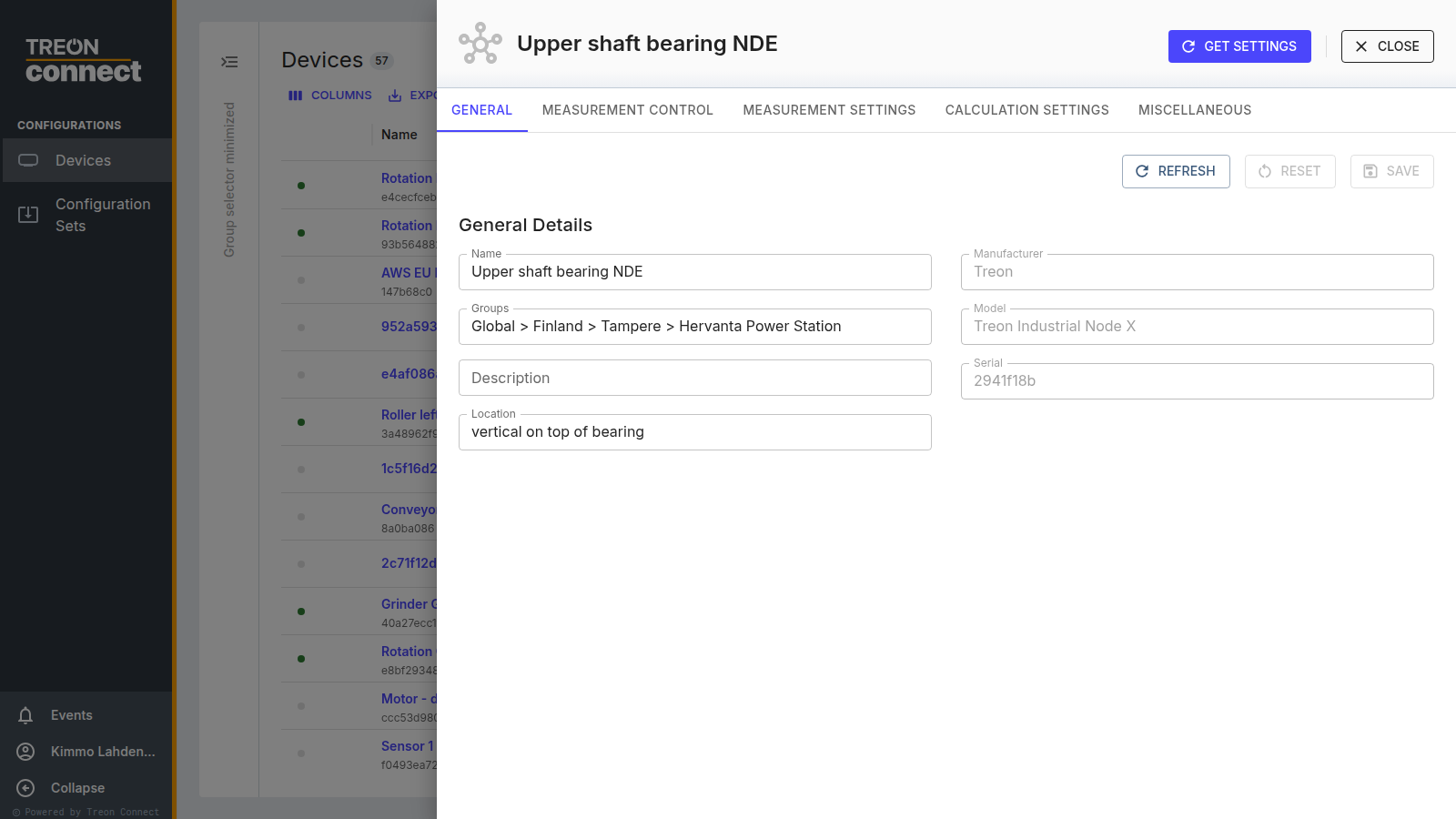
This lets you adapt the default profile while keeping its core structure intact. Deep calculation details, such as changing filters, can also be edited. If you need a highly customised profile that the UI cannot express, contact Treon Support.
Changing which measurement set an FFT uses can substantially improve resolution for low-frequency vibration — that is usually the single most effective change for a slow machine.
See Device configuration for the screen-by-screen detail.
Treon Industrial Node X software 0.9.5 and older
Older Treon Industrial Node X software versions 0.9.5 and below have unreliable VP2P and VZ2P metrics when filters are enabled. Update the node to the latest software release — see Firmware updates.
Reference: measurement sets and calculation IDs
The default profile uses two of the sixteen measurement sets the device defines. The tables below list all of them, for anyone who needs to go beyond the default. Sets 0 and 5 are the two enabled by default.
Measurement sets
| Set | Description | Measurement types | Calc IDs | Typical use case |
|---|---|---|---|---|
| 0 | Basic vibration KPI set | Acceleration KPIs, Velocity KPIs, Temperature | 1, 2 | Basic vibration KPI monitoring for assets running over 600 rpm: pumps, fans, gearbox input shafts, compressors |
| 1 | Basic vibration KPI & magnetic field KPI set | Acceleration KPIs, Velocity KPIs, Magnetic field KPIs, Temperature, RPM | 1, 2, 3 | Basic vibration and magnetic field KPI monitoring for electric motors running over 600 rpm |
| 2 | Basic vibration KPI set, long measurement | Acceleration KPIs, Velocity KPIs, Temperature | 1, 2 | Basic vibration monitoring for assets running under 600 rpm: pumps, fans, gearbox input and intermediate shafts |
| 3 | Basic vibration KPI & magnetic field KPI set, long measurement | Acceleration KPIs, Velocity KPIs, Magnetic field KPIs, Temperature, RPM | 1, 2, 3 | Basic vibration and magnetic field KPI monitoring for electric motors running under 600 rpm |
| 4 | Magnetic field KPI set | Magnetic KPIs, Temperature, RPM | 3 | Magnetic field KPI monitoring of electric motors |
| 5 | Basic vibration FFTs | Acceleration FFT, Velocity FFT | 5, 6 | Default measurement for vibration spectrum analysis for assets running over 600 rpm |
| 6 | Basic vibration FFTs and magnetic field FFT | Acceleration FFT, Velocity FFT, Magnetic field FFT, RPM | 5, 6, 7, 15 | Vibration and magnetic field spectrum analysis for electric motors running over 600 rpm |
| 7 | High frequency velocity FFT | Acceleration FFT, Velocity FFT | 5, 8 | Alternative velocity FFT for fast rotating assets, 3000 rpm or above. Also includes a full-range acceleration FFT |
| 8 | Medium frequency velocity FFT | Acceleration FFT, Velocity FFT | 5, 9 | Alternative velocity FFT for generic assets running between 600 and 1500 rpm. Also includes a full-range acceleration FFT |
| 9 | Low frequency velocity FFT | Acceleration FFT, Velocity FFT | 10, 12 | Slow rotating machines (120–600 rpm) |
| 10 | Very low frequency velocity FFT | Acceleration FFT, Velocity FFT | 11, 12 | Very slow rotating assets, under 120 rpm, such as gearboxes |
| 11 | Medium frequency acceleration FFT | Acceleration FFT | 12 | Mid frequency acceleration FFT analysis for assets running under 600 rpm |
| 12 | Magnetic field FFT | Magnetic FFT, RPM | 7, 15 | Electric motor magnetic field FFT analysis, independent of vibration measurements |
| 13 | Triaxial acceleration waveform | Acceleration waveform | 13 | Acceleration waveform analysis in three axes |
| 14 | Single-axis acceleration waveform | Acceleration waveform | 13 | Acceleration waveform analysis in a single axis |
| 15 | Magnetic field waveform | Magnetic waveform | 14 | Magnetic field waveform analysis in three axes |
Measurement configuration
| Set | Measurement type | Accel. axis | G-range | Accel. samples | Accel. length | Mag. samples | Mag. length |
|---|---|---|---|---|---|---|---|
| 0 | Acceleration | Triaxial | ±8g | 32768 | 1.23 s | – | – |
| 1 | Acceleration + Magnetic field | Triaxial | ±8g | 32768 | 1.23 s | 16384 | 6.55 s |
| 2 | Acceleration | Triaxial | ±8g | 81920 | 3.07 s | – | – |
| 3 | Acceleration + Magnetic field | Triaxial | ±8g | 81920 | 3.07 s | 16384 | 6.55 s |
| 4 | Magnetic field | – | – | – | – | 16384 | 6.55 s |
| 5 | Acceleration | Triaxial | ±8g | 122880 | 4.61 s | – | – |
| 6 | Acceleration + Magnetic field | Triaxial | ±8g | 122880 | 4.61 s | 16384 | 6.55 s |
| 7 | Acceleration | Triaxial | ±8g | 122880 | 4.61 s | – | – |
| 8 | Acceleration | Triaxial | ±8g | 122880 | 4.61 s | – | – |
| 9 | Acceleration | Triaxial | ±8g | 165888 | 6.22 s | – | – |
| 10 | Acceleration | Triaxial | ±8g | 286720 | 10.75 s | – | – |
| 11 | Acceleration | Triaxial | ±8g | 122880 | 4.61 s | – | – |
| 12 | Magnetic field | – | – | – | – | 16384 | 6.55 s |
| 13 | Acceleration | Triaxial | ±8g | 26667 | 1.00 s | – | – |
| 14 | Acceleration | Vertical | ±8g | 106668 | 4.00 s | – | – |
| 15 | Magnetic field | – | – | – | – | 23750 | 9.50 s |
Calculation IDs and configuration
| Calc | Type | Low cut-off (Hz) | High cut-off (Hz) | Lines | Averages | Overlap | Window |
|---|---|---|---|---|---|---|---|
| 0 | Acceleration RMS, Peak, P2P, Crest factor, Kurtosis, temperature | – | – | – | – | – | – |
| 1 | Acceleration RMS, Peak, P2P, Crest factor, Kurtosis, temperature | 1000 | – | – | – | – | – |
| 2 | Velocity RMS, temperature | 10 | 1000 | – | – | – | – |
| 3 | Magnetic field RPM, RMS, Peak, P2P, temperature | – | – | – | – | – | – |
| 4 | Temperature | – | – | – | – | – | – |
| 5 | Acceleration FFT | – | – | 6400 | 4 | 50% | Hanning |
| 6 | Velocity FFT | 2 | 1042 | 3200 | 2 | 50% | Hanning |
| 7 | Magnetic field FFT | – | 976 | 6400 | 1 | – | Hanning |
| 8 | Velocity FFT | 2 | 1736 | 3200 | 4 | 50% | Hanning |
| 9 | Velocity FFT | 1 | 868 | 1600 | 4 | 50% | Hanning |
| 10 | Velocity FFT | – | 386 | 1600 | 2 | 50% | Hanning |
| 11 | Velocity FFT | – | 149 | 1600 | 1 | – | Hanning |
| 12 | Acceleration FFT | – | 3472 | 6400 | 4 | 50% | Hanning |
| 13 | Acceleration waveform | – | – | – | – | – | – |
| 14 | Magnetic field waveform | – | – | – | – | – | – |
A dash in the cut-off columns means no filter in that direction.
Fmax = (sampling rate ÷ decimation) ÷ 2.56, and resolution = Fmax ÷ number of lines.
Effect on battery life
Battery consumption follows three rules:
- Keepalive traffic costs almost nothing — the mesh stays connected on very low power.
- Measuring and calculating costs battery — sampling and processing take energy.
- Transmitting costs the most — especially larger data sets.
Relative cost by data type:
| Data type | Battery cost |
|---|---|
| KPI | Low |
| FFT | Medium |
| Raw waveform | High |
So frequent KPI measurements are generally safe, while FFTs and waveforms should be used selectively. The message counts behind that are in Network → Large data in the mesh.
Battery usage is also affected by routing, not only by a node's own measurements: nodes relay data for other nodes, and long routing chains drain the intermediaries. Use the network map to find long data paths, and add gateways where devices depend on too many hops.
You can monitor battery voltage per device in Devices, which is the practical way to see what a configuration change actually cost.
To maximise battery life: use KPIs for frequent monitoring, FFTs mainly for diagnostics, waveforms only for expert analysis, and keep an eye on the mesh topology.
Example: a machine that runs in bursts
- Enable wake-up.
- Set the action delay to skip the machine's start-up transient.
- Use blanking time the way you would use a timer interval.
- KPIs every 1 hour, FFT every 6 hours.
Example: a machine running continuously (say 8 h/day)
- The default profile fits most such cases.
- Avoid wake-up monitoring during off-hours, which only drains battery.
- Wake-up is worth it if you need hourly FFTs but only while the machine is running.