Device configuration
Adjust one device without starting from scratch. View and change its timers, triggers and calculations while keeping the structure of the default profile.
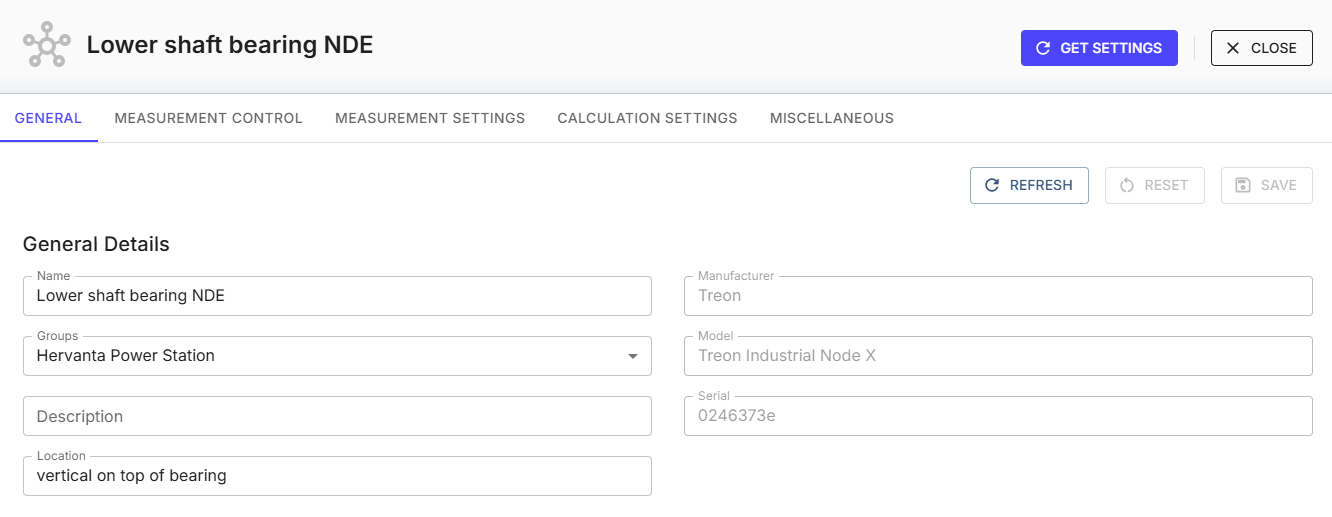
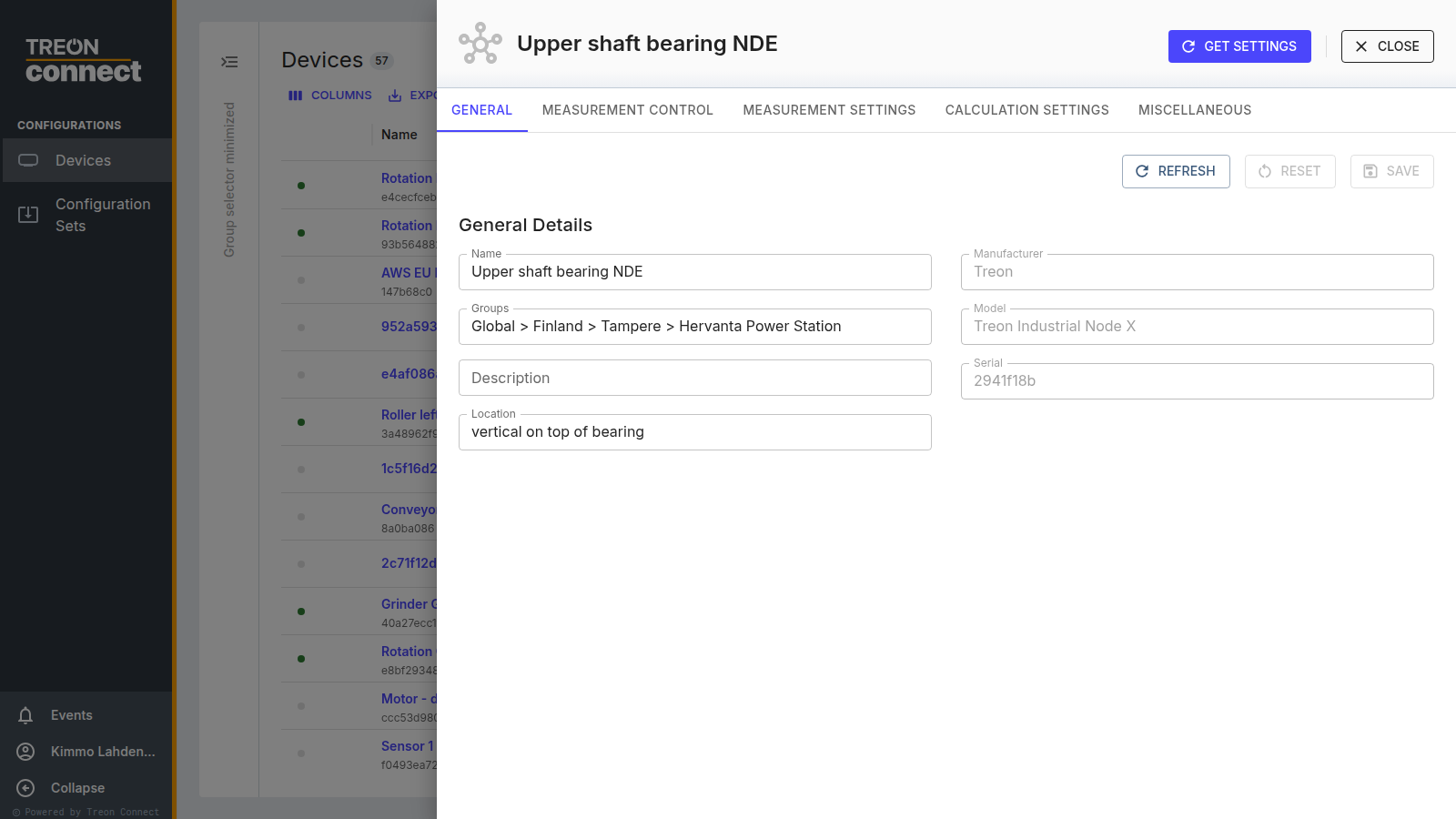
From here you can read the current settings and change them — timers, which measurements they trigger, and what is calculated from each. You are adapting the default profile while keeping its structure intact, rather than building one from scratch.
Reading and refreshing settings
The drawer shows the configuration as Treon Connect holds it. To fetch the live settings from the device itself, use Get Settings — this sends a request through the gateway and mesh, so it can take from seconds up to a few minutes depending on the device's wake-up cycle and network distance. Progress (with a percentage) is shown while it runs, and the buttons are disabled while any operation is in progress.
The configuration tabs
Which tabs appear depends on the device model:
- General — the device's identity and placement: Name, Description, Location and Groups are editable (Save); Manufacturer, Model and Serial are read-only.
- Measurement Control / Measurement Settings / Calculation Settings — the measurement profile (below), for sensors.
- On gateways, networking tabs such as Ethernet, Wi-Fi, Cellular and System.
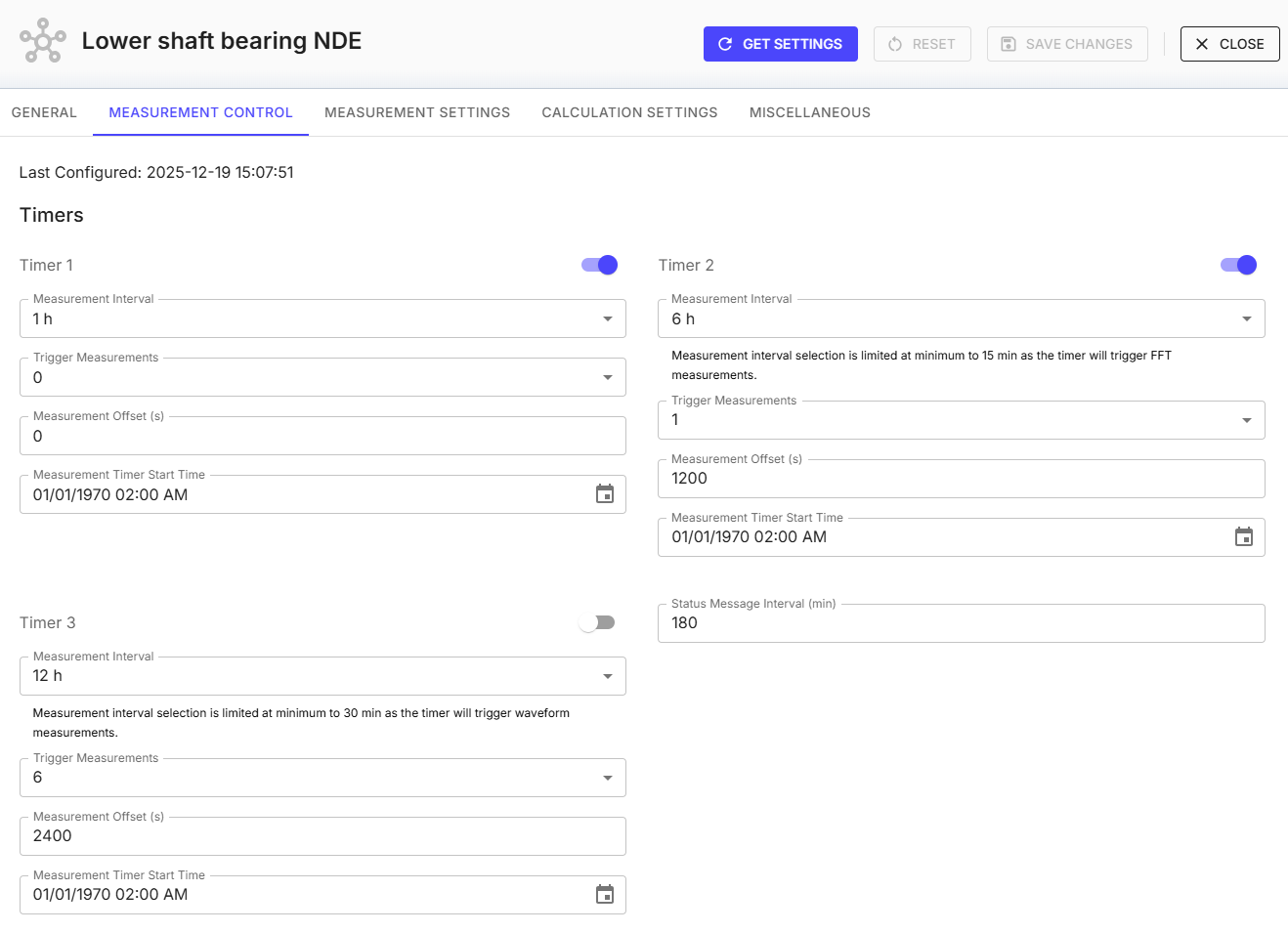
Measurement Control
Which timers are enabled, their intervals and start offsets, and which measurement each one triggers.
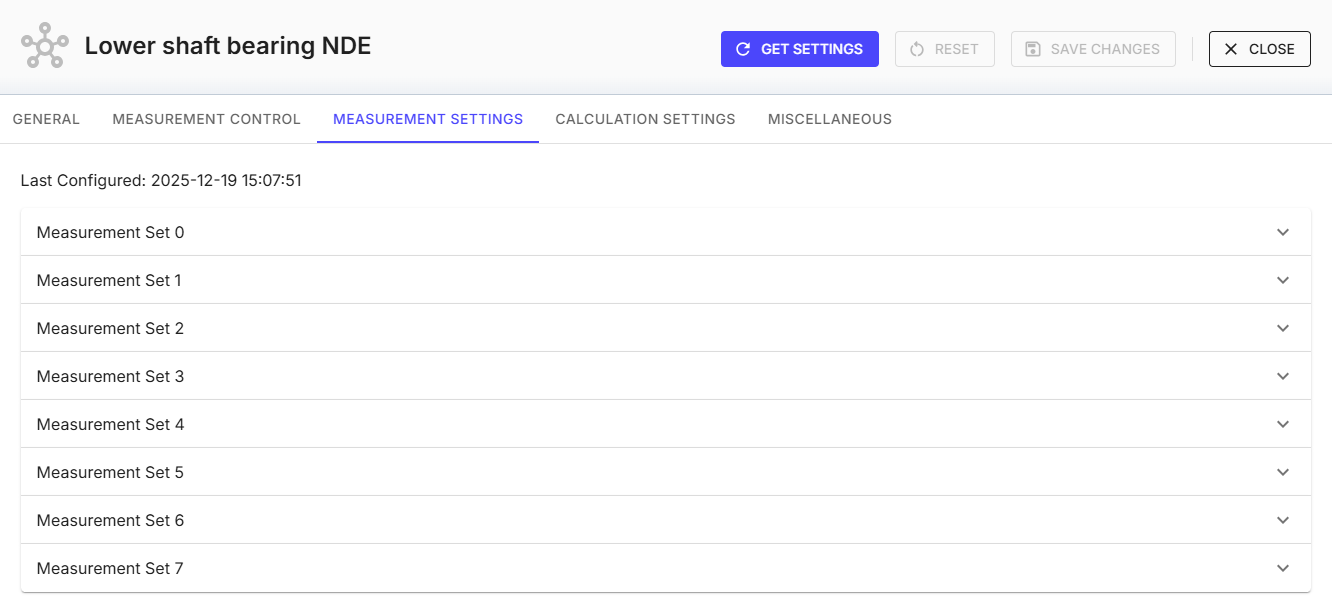
Measurement Settings
How the raw data is captured for each measurement: the axes, the sample count and the acceleration range.
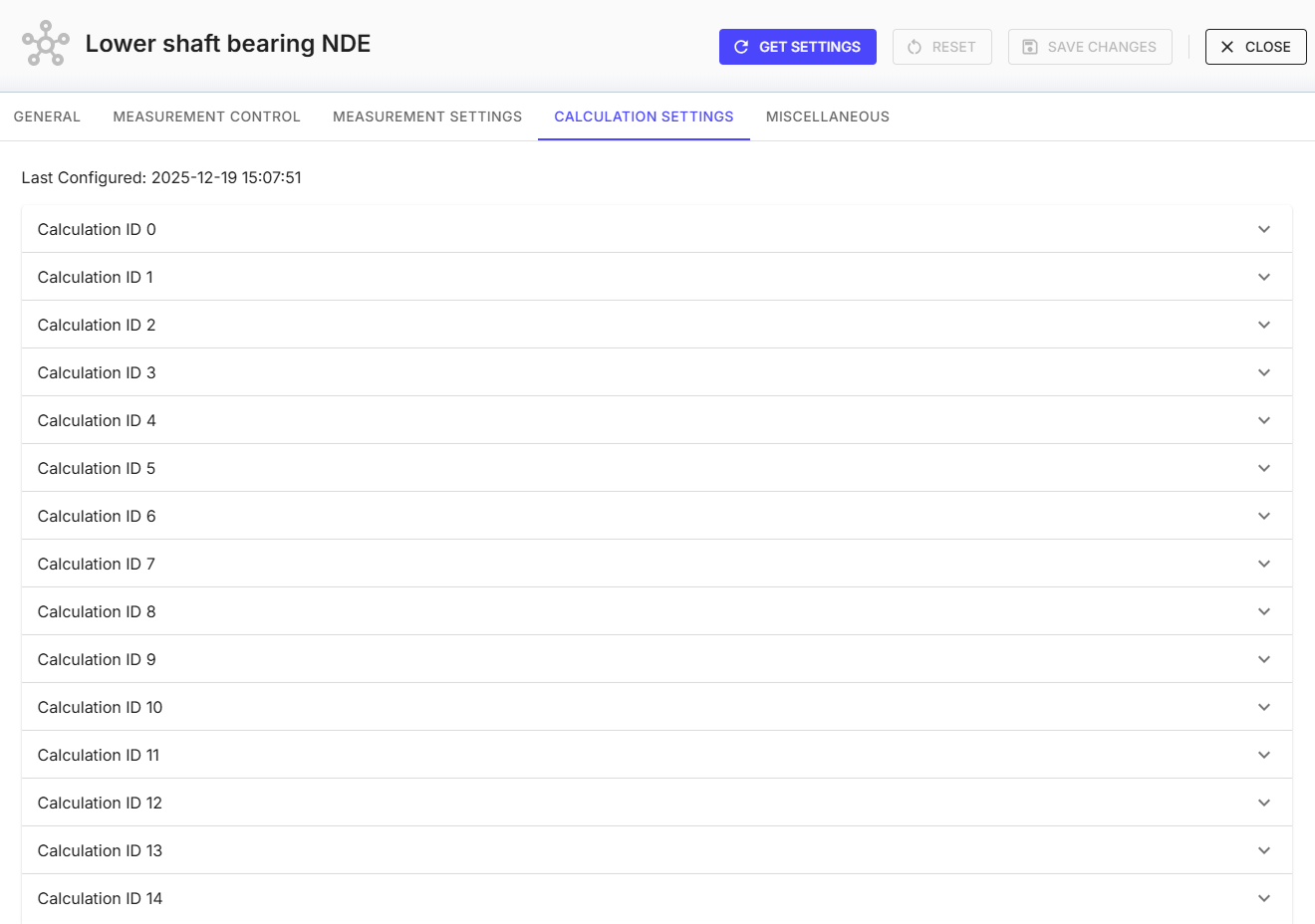
Calculation Settings
What is computed from each measurement — the calculation type, filter frequency ranges, and advanced options such as decimation and FFT overlap.
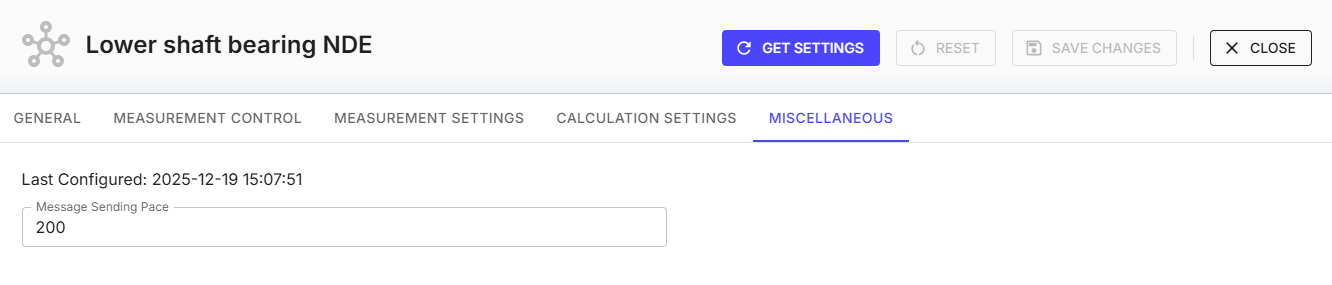
Miscellaneous
The remaining device-level options.
The measurement profile
For a vibration sensor, the measurement tabs control what it samples, when, and what it computes. The main setting groups:
| Setting group | What it controls |
|---|---|
| Timers | Measurement timers — enable, Measurement Interval (minutes), start time / offset, and the status-message interval. This sets how often the sensor measures. |
| Wake Up (labelled "Wake up to vibration") | Measure when the machine actually vibrates — G-range, threshold, action delay, blank time, sampling rate / output data rate, and run-hours monitoring. Good for intermittently-run machines. |
| Accelerometer / magnetometer | G-range, output data rate, axes (X / Y / Z), and sample count. |
| Features | Which values are computed and sent — RMS velocity & acceleration, kurtosis, crest factor, peak-to-peak & zero-to-peak, FFT (acceleration / velocity / envelope), waveform, RPM. |
| Calculation settings | How spectra are computed — filter (full / high / low / band-pass) and cut-offs, decimation, and FFT parameters (averages, overlap, lines, window, type, format). |
| Temperature | Temperature-based wake-up and events (thresholds, and whether to send an event or trigger a measurement). |
Which settings you see depends on the sensor
FFT, waveform, magnetometer and calculation settings are Treon Make (Treon Industrial Node X) capabilities. A Treon Flow (Treon Industrial Node C) sensor is KPI-only, so its profile exposes only its KPI outputs and measurement timing — no spectrum, waveform or magnetic-field options.
Two common tasks:
- Enable a KPI, spectrum or waveform — turn on the relevant feature (e.g. FFT or Waveform) so the measurement point starts producing it. If a point shows no spectrum or waveform in Condition, that feature isn't enabled here.
- Change how often it measures — adjust a timer's Measurement Interval, and use wake-on-motion for machines that only run some of the time.
Applying a change
Edit the values and Save Changes. The change is sent to the device as an operation, and the view updates once the device confirms — you can follow it in Operational Telemetry. A device that's asleep receives the change at its next wake-up.
What you see depends on the device
The available measurement settings and gateway tabs vary by device model, and some advanced options appear only where enabled for your instance.
When the UI cannot express what you need
Deep calculation details — changing filters, for instance — can also be edited here. If you need a profile the UI cannot express, contact Treon Support rather than working around it.
Changing which measurement set an FFT uses is usually the single most effective adjustment for a slow machine: it can substantially improve resolution for low-frequency vibration. See Configuration for which settings suit which machines.