Powering on
Turn it on and the data starts flowing. Industrial Node X ships switched off. The same button that powers it on also shows whether it has found a gateway. Test every node on the bench before you deploy.
Test before you deploy
Test the Treon Gateway and all Treon Industrial Node X sensors before the actual deployment, so you know every node connects to the gateway and the gateway delivers data to your Treon Connect instance. It follows that nodes may already be switched on when they reach the machine — check the status rather than assuming.
The top cap has to be removed to press the button or see the status light.
Switching the node on
Power the gateway first. Switch on the Treon Gateway and wait for its status light to turn green before you power on any nodes. A node that comes up with no gateway to join has nothing to connect to.
There are two ways to switch a node on:
a. With NFC — bring an NFC field, such as a smartphone, close to the sensor.
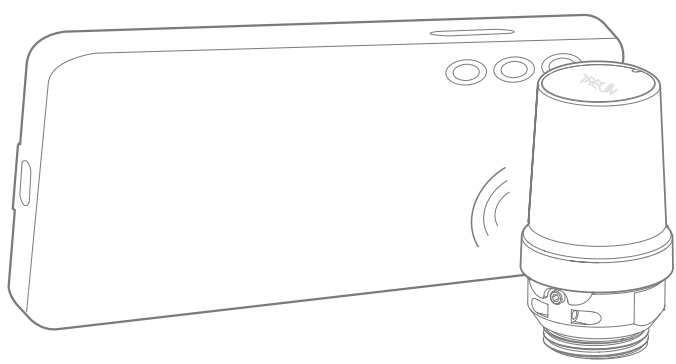
b. With the power button — press and hold the power button until the status light turns green.
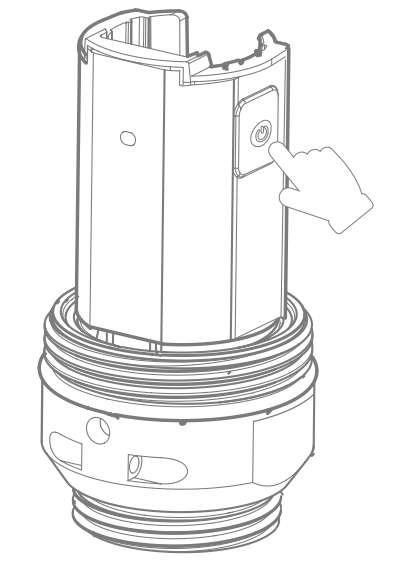
Once on, the node starts measuring and transmitting automatically on its configured measurement profile.
In a multi-gateway deployment, power the gateways first
Power on all the gateways and wait for green before activating any sensors. Otherwise every sensor forms a mesh around the first gateway it finds, instead of arranging itself into the optimal layout once the others appear.
Checking the node status
To check whether a node is connected to a gateway:
- Press and hold the power button until the status light turns green, then release.
- The light goes out for a moment.
- The light then shows the connection status.
| Light | Meaning |
|---|---|
| Green | Connected. |
| Red | Not connected. |
| No light at all | Not powered on, or the battery is exhausted. |
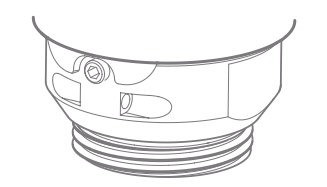
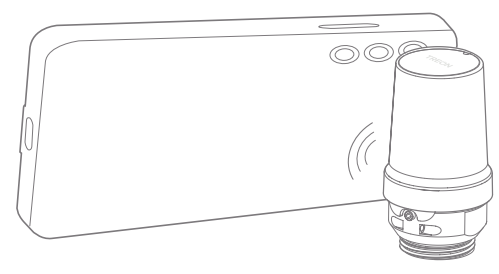
A brief press of the button gives the same connection check — the node blinks green twice when it is connected.
If the node is not connected
If the gateway is powered on, both sensor and gateway are configured on the same network, and the node has had time to establish a connection, then the problem is the radio path: the node is too far from the gateway, or the surroundings are blocking it.
Either move the gateway closer to the sensor, or add an additional routing sensor between the sensor and the gateway to help route the data. See Network.
Switching the node off
Press and hold the power button until the status light turns red, then release.
Confirming it in Treon Connect
As the node reports in it appears in the Devices application and on the network map. Confirm it is on the map before you leave site — see Connectivity verification.
Then an administrator creates the asset and attaches the node as a measurement point, and monitoring begins.