Invite users and assign roles
A person's access in Treon Connect comes entirely from the roles assigned to them, and a role grants permission per group. There is no separate per-user scope — so the role is where you decide both what someone can do and where they can do it.
1. Make sure the groups exist
Because permission is granted per group, the group hierarchy has to reflect your sites before you build a role. Create any missing groups first.
2. Create a role
In Access → Roles, create a role with:
- Applications Access — which applications it can open.
- A per-group permission — Full Permissions, Read-Only or No Access for each group. Granting a group cascades to everything beneath it, so you can grant a whole site in one click.
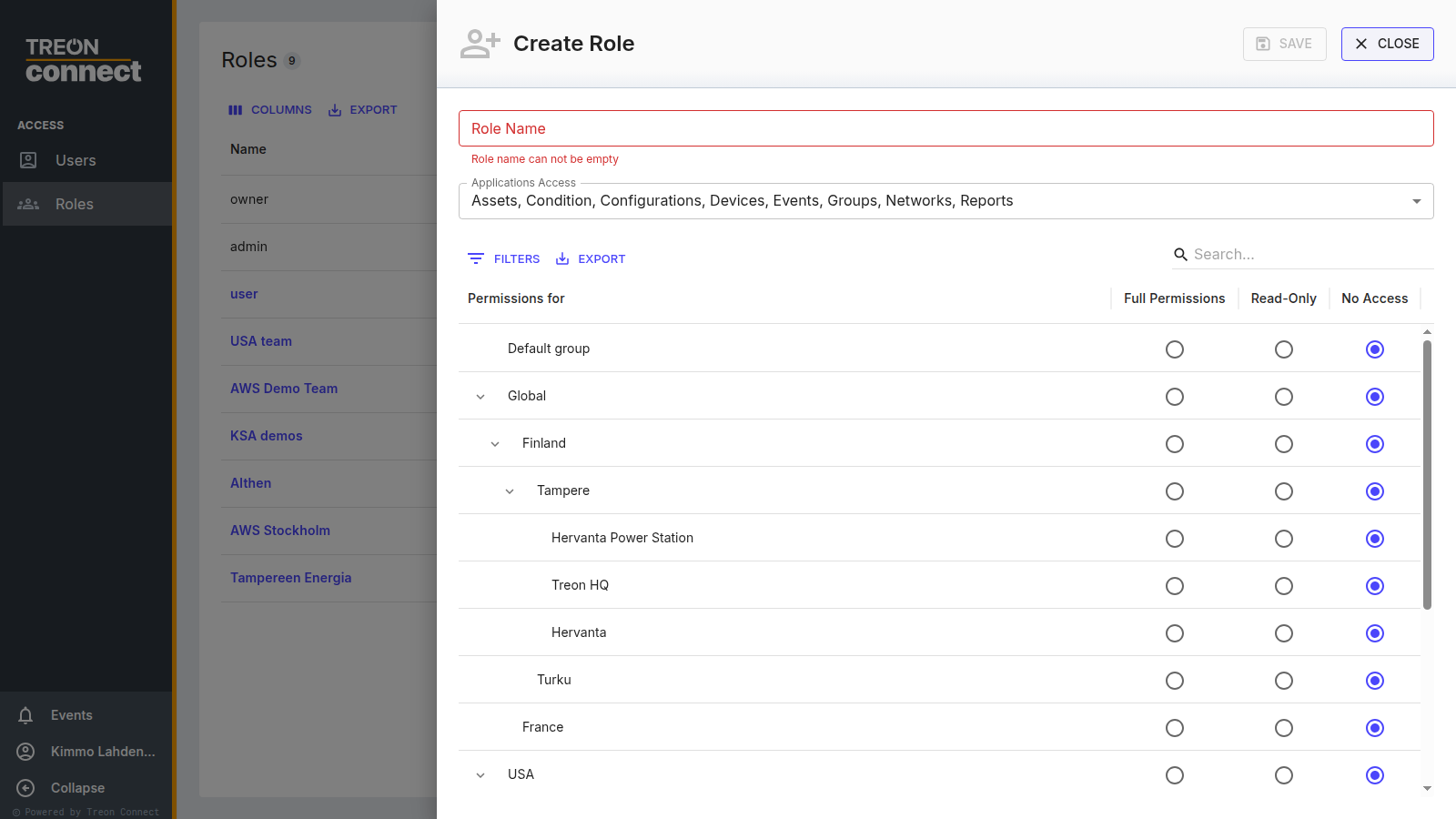
Build roles around jobs rather than individuals — "Site 2 technician", "Group reliability engineer" — so a new starter is one assignment rather than a new role.
3. Invite the user
In Access → Users, Invite User with their name, email and role(s). They receive an email with a link to set their own password; after that they sign in with their email and that password.
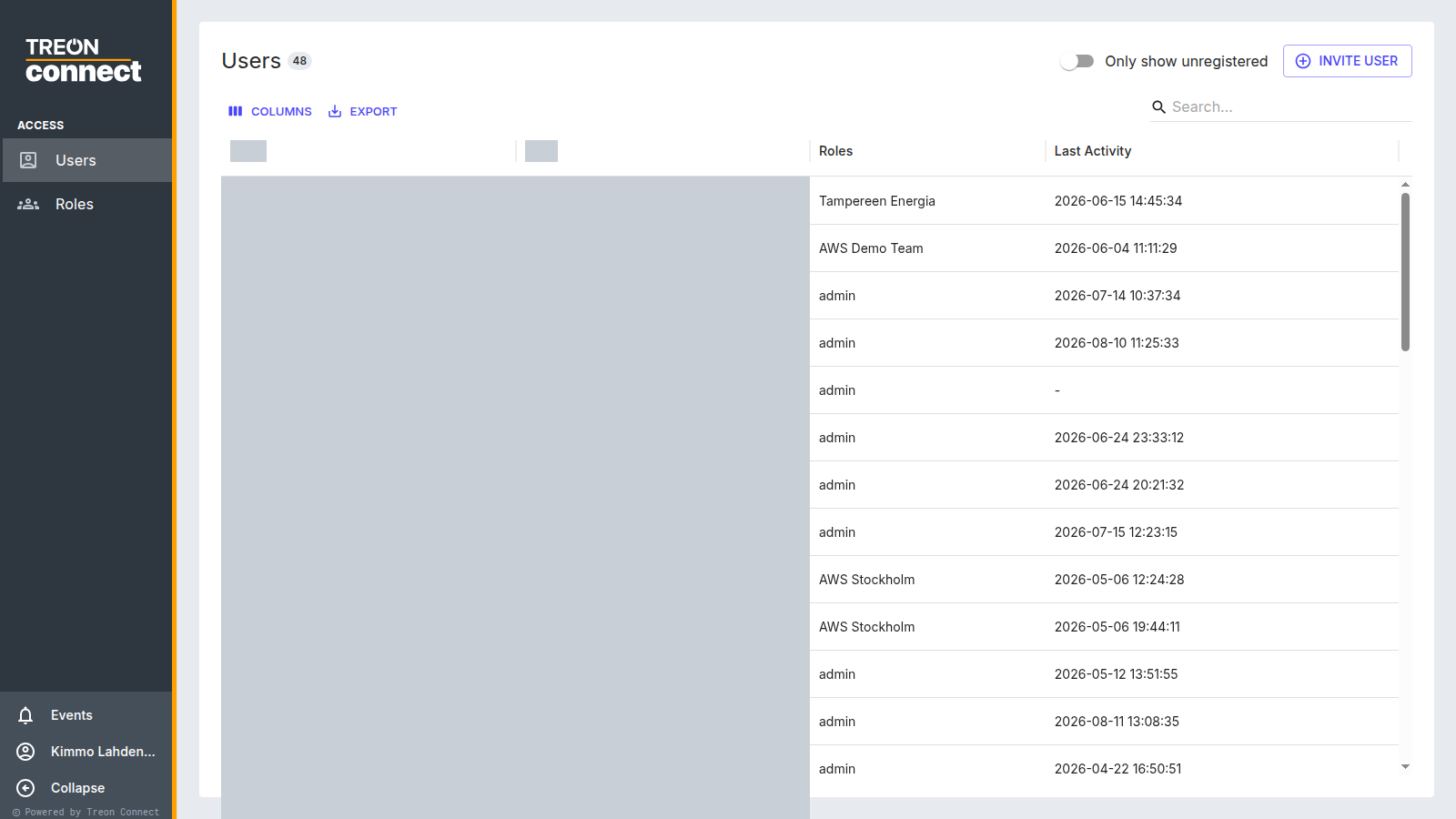
The invitation link is valid for 72 hours.
4. Adjust later
Open a user to change roles, Reset Password or Resend Invite, or Delete them — there is no "deactivate".
After adding a sub-group
If you add a sub-group under a group a role already covers, re-save the role so the permission reaches the new group. Until you do, users will not see the new sub-group at all.
Next: Register devices.